How to Automate Appointment Reminders (Email & SMS Guide)
Stop manually reminding clients about their appointments. Set up automated email and SMS reminders that fire at the right time, reduce no-shows, and keep your schedule full — on autopilot.
You know the feeling — a client books an appointment, you write down their name, and hope they remember to show up. Sometimes they do. Sometimes they do not. And every no-show costs you time and money.
Automated reminders solve this. Instead of manually calling or texting every client the day before, the system sends a professional reminder automatically — by email, SMS, or both — at the exact right time. Studies show that automated reminders can reduce no-shows by up to 80%.
Why automate appointment reminders?
Fewer no-shows
A well-timed reminder cuts no-shows by 50–80%. Clients who forget or mix up dates get a gentle nudge before the appointment.
More revenue
Fewer empty slots means more paying appointments. For a salon or clinic, reducing no-shows from 10% to 5% can add thousands in monthly revenue.
Saves staff time
No more manual calls or texts the day before. Your staff can focus on serving clients instead of chasing them.
Professional image
Automated reminders look professional and reliable. Clients appreciate the heads-up — and it builds trust in your business.
Types of automated notifications
Clickobook sends up to 8 different notification types — each one can be enabled or disabled per role (Customer, Staff, Admin, Manager).
| Notification type | When it sends | SMS | |
|---|---|---|---|
| Booking Confirmation | When a booking is confirmed (auto or manual) | ✅ | ✅ |
| Booking Reminder | X hours before the appointment (configurable) | ✅ | ✅ |
| Booking Cancelled | When a booking is cancelled | ✅ | ✅ |
| Booking Rescheduled | When a booking date/time changes | ✅ | ✅ |
| Booking Completed | After the appointment is marked done | ✅ | — |
| Review Request | ~24 hours after completion | ✅ | — |
| Subscription Credit Granted | When auto-scheduling credits instead of a slot | ✅ | ✅ |
Per-role control
Each notification type can be toggled independently for Customers, Staff, Admin and Manager roles. For example, you can send SMS reminders only to customers while emailing both customers and staff.
How automated reminders work
The system runs silently in the background. Here is the flow every hour:
Hourly check
Every hour, the system scans all confirmed bookings for the next days and checks if any are within the reminder window — X hours before the appointment time.
Channel selection
For each booking, the system checks if email and/or SMS reminders are enabled and if the lead time has passed. Email and SMS have independent lead times — you might send an email 24 hours before and an SMS 2 hours before.
Personalized message
The system builds each reminder using your custom template — with the customer's name, service, date, time, staff, and location filled in automatically.
Delivery
Emails are sent through your configured SMTP or AWS SES, queued in the background so your admin panel is not slowed down. SMS messages are sent through Twilio. The system marks each reminder as sent to avoid duplicates.
Retry on failure
If an SMS fails to send (invalid number, provider error), the system does NOT mark it as sent — it will retry on the next cycle. Emails that bounce are handled by your mail provider's standard retry mechanism.
Fully automatic, zero daily effort
Once you configure your settings, the reminder system runs on its own. Every hour it checks for upcoming bookings and sends the right reminders to the right people. No manual work needed.
Setting up email notifications
Email reminders work out of the box with the platform's default mailer. For better deliverability, you can connect your own email service.
SMTP / PHPMailer
Any provider — Gmail, Outlook, your own server
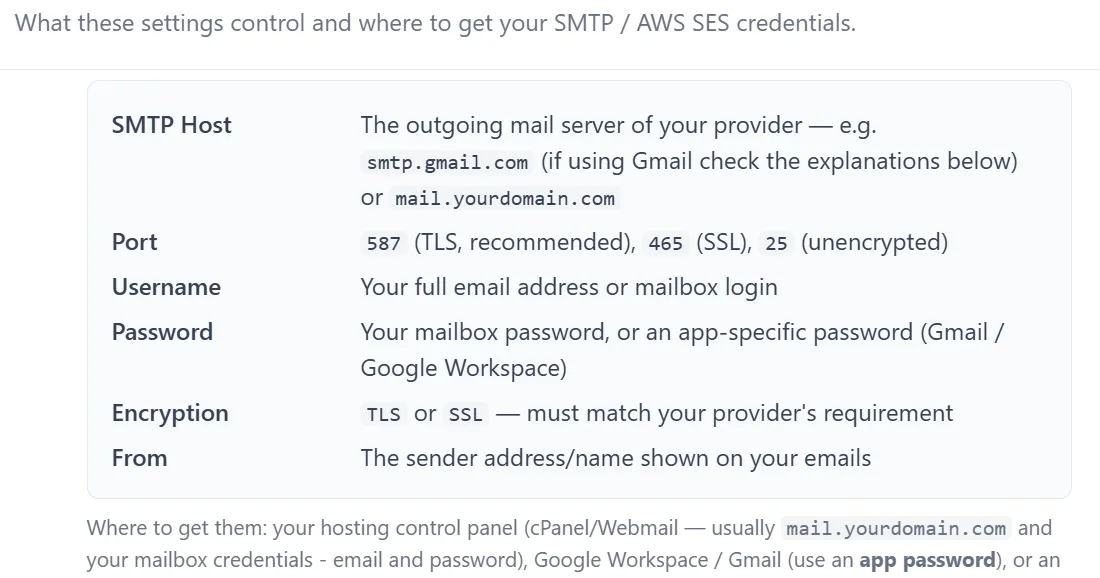
Configure your SMTP host, port, username, password, and encryption (TLS/SSL/None). Set the from address and name that appear on your outgoing emails.
- Works with any email provider
- Full control over from address
- SPF/DKIM/DMARC guide built-in
AWS SES
High-volume, low-cost email
Configure your AWS access key, secret key, and region. The from address must be verified in your SES account. Best for high-volume senders.
- High deliverability
- Low cost per email
- Scalable to thousands of emails
Email deliverability tips (SPF, DKIM, DMARC)
To ensure your reminders reach your clients' inboxes (not spam), set up these DNS records for your sending domain: SPF (authorizes your email server), DKIM (digitally signs your emails), and DMARC (instructs receivers how to handle unauthenticated email). Clickobook includes a built-in guide with example DNS entries you can copy-paste to your domain provider.
No configuration required to start
If you do not configure a custom mail provider, the platform's default mailer handles delivery automatically. You can start sending reminders immediately and upgrade to your own SMTP/SES later.
Setting up SMS reminders
SMS reminders require a Twilio account and the SMS feature on your plan. Here is how it works:
Get a Twilio account
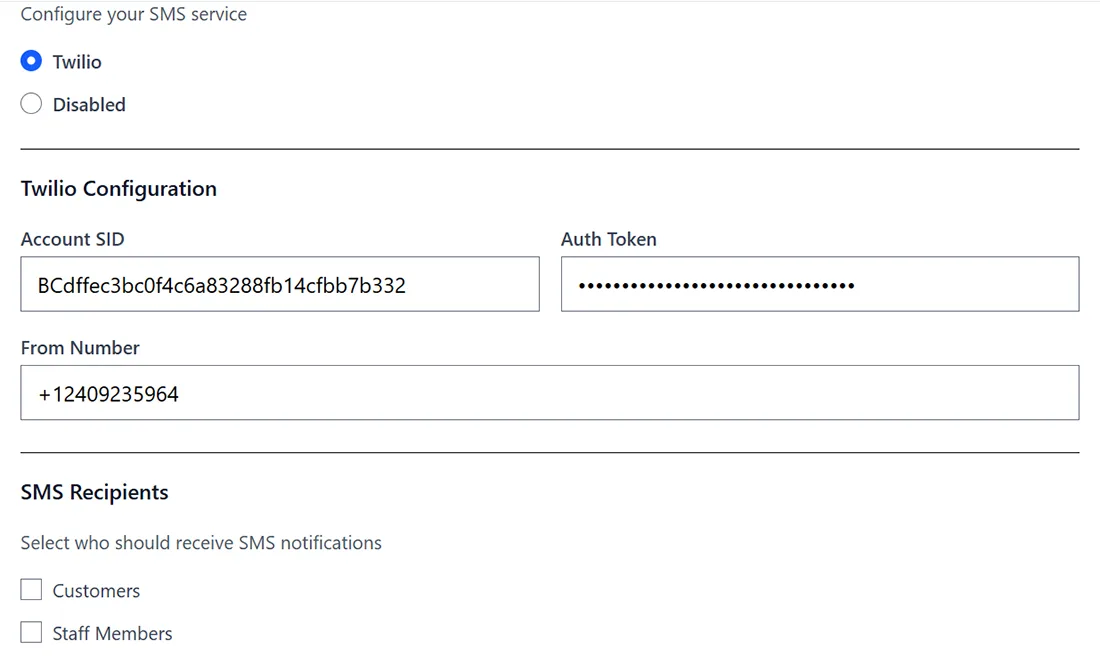
Sign up at twilio.com — the free trial credits are enough to test. You will need your Account SID, Auth Token, and a Twilio phone number.
Enter credentials
In Clickobook, go to Admin → Settings → SMS. Enter your Twilio SID, Auth Token, and From Number. Select Twilio as your provider.
Configure recipients
Enable SMS for Customers, Staff, and/or Managers. Then toggle which notification types trigger SMS — confirmation, reminder, cancellation, reschedule.
SMS is BYO (bring your own account)
You use your own Twilio account and pay Twilio directly for the messages. Clickobook does not charge extra for SMS — the feature is plan-gated, but the message costs are your own Twilio usage.
Reminder timing & templates
You control exactly when reminders fire and what they say.
Lead times
Separate lead times for email and SMS:
- Email reminder: default 24 hours before (configurable)
- SMS reminder: default 2 hours before (configurable)
- Minimum: 1 hour before appointment
Customizable templates
Every message is fully customizable — both subject and body:
- Variables: {booking_number}, {service_name}, {date}, {time}, {customer_name}, {staff_name}, {location_name}, {price}
- Separate templates for customer, staff, and manager
- Rescheduled bookings also include {old_date} and {old_time}
Template variable reference
| Variable | Replaced with | Available in |
|---|---|---|
| {booking_number} | Unique booking reference | All templates |
| {service_name} | Name of the booked service | All templates |
| {date} | Appointment date | All templates |
| {time} | Appointment start time | All templates |
| {customer_name} | Client's full name | All templates |
| {staff_name} | Assigned staff member | All templates |
| {location_name} | Business location | All templates |
| {price} | Booking total | All templates |
| {old_date} | Previous date (rescheduled) | Rescheduled only |
| {old_time} | Previous time (rescheduled) | Rescheduled only |
| {review_url} | Review link | Completed / Review |
| {ics_file} | Calendar attachment note | Confirmation (with .ics enabled) |
Calendar attachment (.ics) on confirmation emails
When you enable "Attach .ics to confirmation" in Settings → Email, every booking confirmation email includes a calendar file. One click adds the appointment to Google Calendar, Apple Calendar, or Outlook — with the service name, time, location, and a 30-minute reminder.
Staff daily digest (morning agenda)
The staff daily digest is an automated email sent each morning to every staff member who has bookings that day. It shows their complete schedule — who is coming, when, and for what service.
Morning delivery
Sent automatically in the morning (configurable time). Staff members with no bookings that day do not receive anything.
Full day overview
Shows time, customer name, service, and location for each booking. Includes customer phone and address for reference.
Feature-gated
The Staff Daily Digest is a premium feature. Check your plan to see if it is included. You can enable/disable it in Settings → Email.
Reminder setup checklist
Here is how to configure automated reminders step by step:
Configure email delivery
Go to Admin → Settings → Email. Choose SMTP or AWS SES, enter your credentials, and send a test email to verify. Or skip this — the default mailer works immediately.
Set reminder timing
In Admin → Settings → Bookings, set the email reminder lead time (default: 24 hours). In Settings → SMS, set the SMS reminder lead time (default: 2 hours).
Enable notification types
In Settings → Email and Settings → SMS, toggle which notification types to send (confirmation, reminder, cancellation, reschedule) and to which roles (Customer, Staff, Admin, Manager).
Customize your templates
Edit the subject and body for each notification type in Settings → Email Templates and SMS Templates. Use the available variables to personalize each message.
Attach calendar file (.ics)
In Settings → Email, toggle "Attach .ics to confirmation" on. Confirmation emails will now include a calendar attachment customers can add to their phone calendar.
Set up Twilio for SMS
If you have the SMS feature, create a Twilio account, enter your SID, Auth Token, and phone number in Settings → SMS. Enable SMS per role and per notification type.
Enable staff daily digest
If your plan includes it, toggle "Staff Daily Digest" in Settings → Email. Staff with bookings will receive a morning agenda automatically.
Set up SPF/DKIM/DMARC (optional)
For best deliverability with your own SMTP/SES, add the recommended DNS records at your domain provider. Clickobook includes a setup guide with copy-paste examples.
In Clickobook, reminders run automatically once configured
Set it up once and forget about it. The system checks every hour, sends the right reminders at the right time, and retries on failure. No manual work required.
Try it free →Appointment reminders — frequently asked questions
You can configure separate lead times for email and SMS reminders — typically 24 hours before the appointment for email and 2 hours before for SMS. The minimum is 1 hour before the appointment. You set the exact hours in Settings → Bookings and Settings → SMS.
Yes. Email reminders are sent to all plans automatically. SMS reminders require the SMS feature on your plan and a connected Twilio account. Each channel has its own toggle and lead time — you can send an email 24 hours before and an SMS 2 hours before, for example.
No. Reminders are sent automatically based on the contact information provided during booking — their email address for email reminders and their phone number for SMS reminders. No account or login is required.
Yes. All email and SMS templates are fully customizable in Admin → Settings → Email Templates / SMS Templates. You can edit both the subject line and the body content using template variables like {booking_number}, {service_name}, {date}, {time}, {customer_name}, {staff_name}, {location_name}, and {price}.
You can use your own SMTP server (Gmail, Outlook, any provider) or AWS SES for reliable delivery. If you don't configure your own mail settings, the platform's default mailer handles delivery automatically. For best deliverability (especially with Gmail/Outlook), we recommend configuring your own SMTP with SPF, DKIM and DMARC DNS records.
The staff daily digest is an automated morning email sent to each staff member showing their scheduled appointments for the day — including customer name, time, service, and location. Staff members with no bookings do not receive the email. It requires the Staff Daily Digest feature on your plan.
Yes. When enabled in Settings → Email, the booking confirmation email automatically includes an .ics (iCal/Calendar) attachment. Customers can open it to add the appointment to their Google Calendar, Apple Calendar, or Outlook calendar with a 30-minute reminder built in.
If an SMS fails (e.g. invalid number, Twilio error), the system does not mark the reminder as sent. It will retry on the next reminder cycle. This ensures no reminder is lost due to a temporary provider issue.
Ready to put reminders on autopilot?
Clickobook includes automated email and SMS reminders in eligible plans — set it up once and never manually remind a client again. Start your free trial today.