How to Let Customers Cancel or Reschedule Their Own Bookings
Every cancelled or rescheduled appointment your staff has to handle over the phone costs you time. This guide shows you how to hand your customers the power to manage their own bookings — safely, within your policies, and without losing control of your schedule.
Think about how many appointment changes you process in a typical week. A client who cannot make Wednesday calls, leaves a voicemail, and waits for a callback. Someone else emails to reschedule, and your front desk has to check the calendar, reply, and hope the new slot still works.
Self-service booking management removes all of that. When customers can cancel or reschedule their own appointments from their phone — within the boundaries you set — your staff stops being a switchboard. Clients who would have simply not shown up reschedule instead, your calendar stays full, and your team focuses on the work that pays. This guide shows exactly how to enable it in Clickobook and configure it safely.
Why let customers manage their own bookings?
Fewer no-shows
A client who realises they cannot make it will reschedule instead of silently missing the appointment — saving the slot and the revenue.
Staff saves hours
Every change handled by the customer is one fewer call, email chain or back-and-forth for your front desk. Self-service scales without extra staff.
24/7 availability
Customers can change their appointment at 10 p.m. or on a Sunday. Your business rules — the cancellation window — still apply automatically.
Freedom with rules
Every toggle and policy is yours: you decide what customers may do, how far in advance, and you can turn any of it off instantly.
What customers see — the booking portal
Every customer gets a personal My Bookings page. It lists their appointments in three tabs — Upcoming, Past and Cancelled — with a search box and date filter for finding a specific visit.
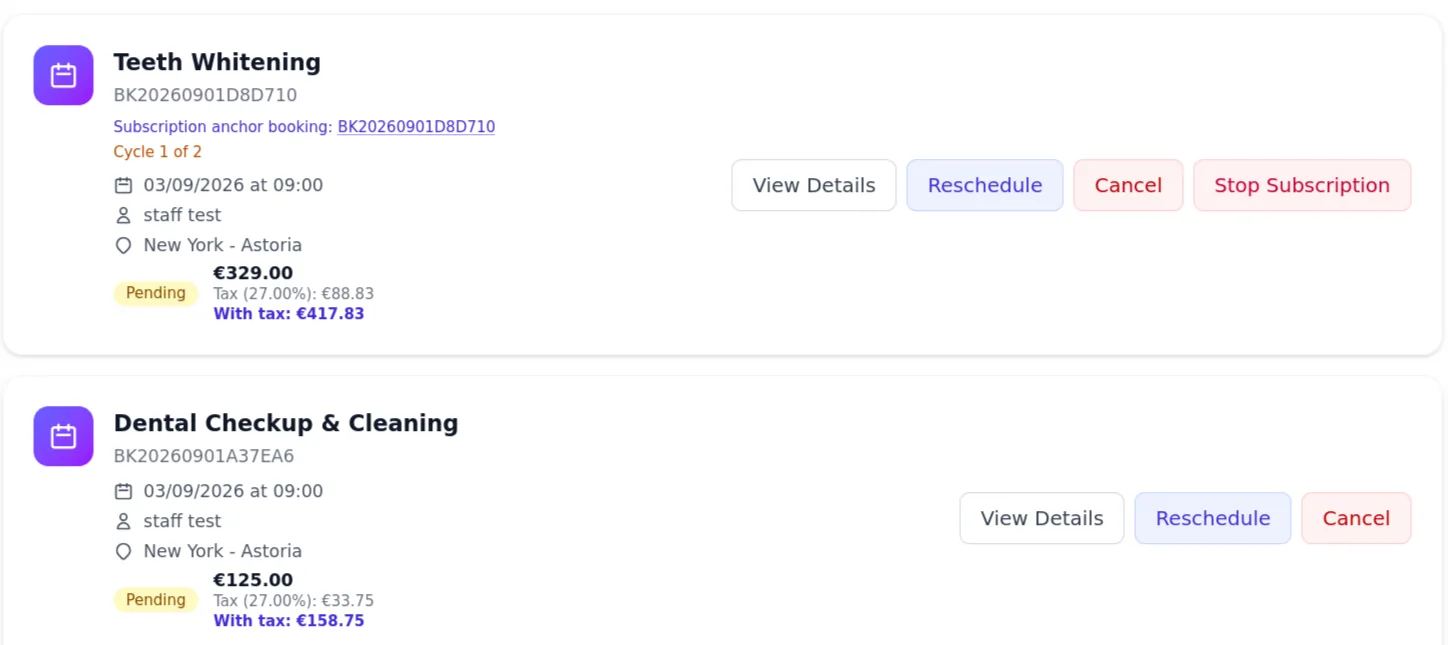
On each booked appointment, customers see
Booking card (list)
- • Service name and booking number (e.g. BK202609010964AF)
- • Date, time, staff member and location
- • Status badge (Pending / Confirmed / Completed / Cancelled)
- • Price breakdown, including tax
- • View Details, plus Reschedule and Cancel buttons when allowed
Booking details page
- • Full date & time of the appointment
- • Service details — plan, staff, location
- • Their answers to your custom booking questions
- • Price breakdown and total with tax
- • QR code and a shareable quick link
- • A message thread to contact the business
💡 The buttons appear only when they are allowed
The Reschedule and Cancel buttons are not always shown. They appear only if you enabled the feature and the specific booking is still eligible — pending or confirmed status, outside the cancellation window, and at least X minutes before the start time. Otherwise the customer simply sees no buttons, and the server rejects direct attempts too.
The cancellation policy — your safety net
Defines the deadline for changesSelf-service does not mean no rules. You define how far in advance customers may cancel or reschedule — the cancellation policy. It is the same boundary used for both actions, and it is enforced on the server, not just hidden in the interface.
24h
The most common policy for service businesses — customers must cancel or reschedule at least 24 hours before the appointment.
48h
Choose this for high-demand slots — weekend appointments, premium treatments or long procedures where a last-minute gap is costly.
5 min
The hard minimum for rescheduling: the system never lets a customer change an appointment less than 5 minutes before it starts.
How the deadline works
- 1. You set the policy in hours or days — for example "at least 24 hours in advance".
- 2. While the appointment is still outside that window, customers can cancel or reschedule freely.
- 3. Once the booking enters the window (or is completed/cancelled), the buttons disappear and direct attempts are rejected.
- 4. You can still cancel any booking yourself from the admin panel — the window only applies to customer self-service.
Tip: combine the policy with deposits for maximum protection — the cancellation window decides when customers can change a booking, and your refund policy (in your Terms page) decides whether a deposit is returned on cancellation.
Step by step — turning self-service on
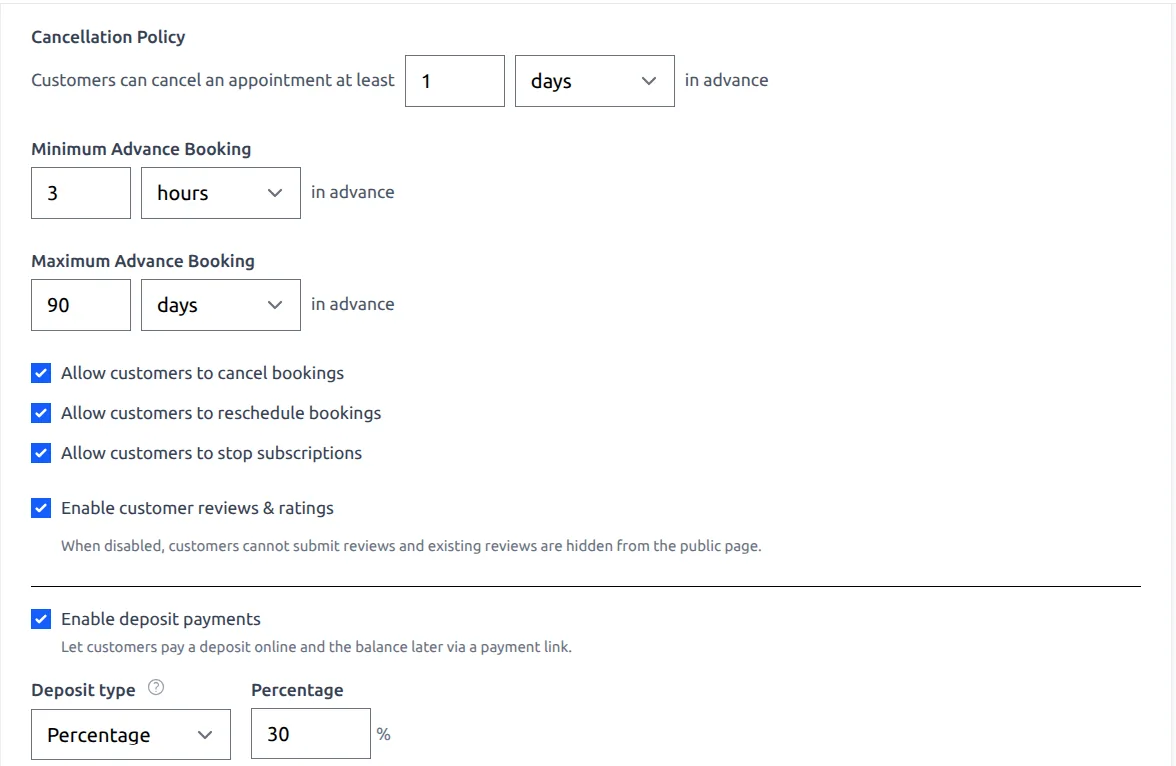
Everything lives in one place: Settings → Bookings in your admin panel. All three toggles are off by default — you deliberately opt in.
-
1
Open the Booking settings.
Admin panel → Settings → Bookings → the "Booking settings" section.
-
2
Set your cancellation policy.
Under Cancellation Policy, enter a number and choose hours or days — e.g. "at least 24 hours in advance".
-
3
Enable the actions you want.
Tick any of these — each is independent:
- ▢ Allow customers to cancel bookings
- ▢ Allow customers to reschedule bookings
- ▢ Allow customers to stop subscriptions (for recurring plans)
-
4
Save.
The change is instant — the buttons appear in the customer portal and in booking emails immediately.
⚠️ Defaults are safe
By default all three options are off, so nothing changes on your live booking page until you turn it on. This is deliberate — self-service is powerful, and each business enables it on its own terms.
What happens when a customer reschedules
Rescheduling is a guided flow, not a free-for-all. The customer keeps the same service, staff member and location, and can only pick a new date and time from your real availability.
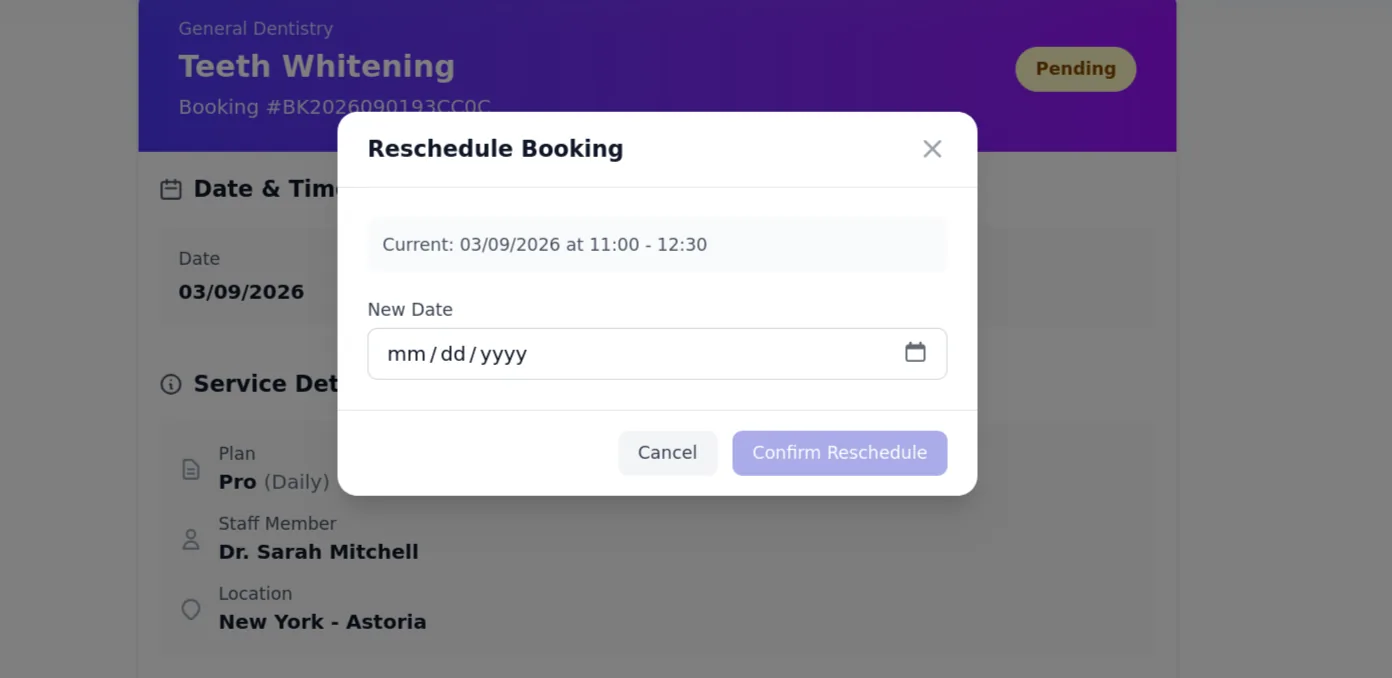
They click Reschedule
From the booking card or the booking details page. A modal opens showing their current date and time.
They pick a new date
A date picker opens — dates in the past are not offered. The system then fetches the real available slots for that day, for the same staff member and location.
They choose a time slot
Available times appear as a grid. The current booking is excluded from the availability check, so the customer always sees up-to-date, non-conflicting slots.
They confirm
The new date and time are validated again on the server, the booking is updated, and the customer and your staff receive updated notification emails.
💡 No slots available? No problem.
If a day has no free slots, the customer sees a "no available times" message and can pick another date — no awkward back-and-forth with your front desk required.
Stopping recurring subscriptions
If you sell recurring plans (memberships), you can let customers stop them themselves. This is a separate toggle from cancel/reschedule — a customer can stop the whole subscription without needing to cancel individual future sessions.
What "Stop Subscription" does
- • Appears on subscription bookings (the anchor booking and its generated sessions) when you enable "Allow customers to stop subscriptions".
- • Cancels the recurring plan with the payment provider (Stripe or PayPal) — the recurring charge stops.
- • Prevents future auto-scheduled sessions — no more bookings will be generated for that plan.
- • The customer confirms the action, and your team sees the cancellation in the admin panel.
💡 Related: subscription credits
When a recurring session cannot be auto-scheduled (for example no slot was available), the system can add a credit to the customer's account instead of losing the paid value. Customers see their unused credits at the top of the My Bookings page and can redeem them at checkout.
Read the full guide on subscription auto-reschedule and credits →How customers reach their bookings
There are two secure paths into booking management, so customers are never locked out.
Logged-in portal
Customers with an account log in and land on My Bookings — every appointment, past and future, with cancel, reschedule and stop-subscription actions. Accessible from the "My Account" menu on your booking page.
Token-based booking links
Every confirmation email includes a "View Your Booking" button plus a QR code with a short link (e.g. clickobook.com/b/ABC123). It opens the same booking view securely — no login needed, and it respects the same self-service controls.
Both paths are tenant-scoped and token-protected: a customer can only ever see and manage their own bookings, never anyone else's.
Best practices from real service businesses
Enable rescheduling before cancellation
If you only turn on one thing, make it rescheduling: clients who can move their appointment rarely no-show. Pair it with a sensible cancellation window (24h is the industry standard) so you are not left with sudden gaps.
Couple it with deposits for high-value services
For expensive procedures, collect a deposit at booking and state in your Terms whether it is refundable on cancellation. The combination cuts no-shows far more than either alone.
Tell customers what they can do
Mention self-service in your confirmation emails and on your site ("Manage or reschedule anytime — up to 24h before"). Customers who know the option exists actually use it.
Review your policy as you grow
When you get busier, tighten the window (48h for premium slots). When you are just starting out, keep it generous (12–24h) to win trust. The setting changes instantly — no code, no waiting.
✅ Quick setup checklist
- 1. Go to Settings → Bookings in the admin panel.
- 2. Set your Cancellation Policy (e.g. 24 hours in advance).
- 3. Enable "Allow customers to reschedule bookings" — and cancellation if you want it.
- 4. Enable "Allow customers to stop subscriptions" if you sell recurring plans.
- 5. Save, then make a test booking to see the buttons from the customer's side.
Customer self-service — frequently asked questions
For most service businesses, yes. Customers who can reschedule online are far less likely to simply not show up — they move the appointment instead of abandoning it. Self-service also spares your staff dozens of phone calls and emails per week. That said, you control it: each toggle (cancel, reschedule, stop subscription) is independent and off by default, so you only enable what fits your workflow.
No. If your cancellation policy requires at least 24 hours of notice, the cancel action is automatically hidden (and the server rejects direct attempts) once the appointment is inside that window. This protects your revenue against late no-shows. You can still cancel a booking yourself from the admin panel at any time.
The reschedule flow keeps the same staff member and location as the original booking — it only changes the date and time. The customer sees live available slots for that staff member and location, and the original booking is excluded from the availability check while they choose.
No. Cancellation only changes the booking status — refunds are always issued by you from the admin panel (Admin → Transactions) for Stripe and PayPal payments. Your refund policy (refundable or non-refundable deposits) is defined in your Terms page and shown to customers at checkout.
Cancelling a booking cancels that single appointment. Stopping a subscription ends a recurring plan — it cancels the anchor booking, prevents future auto-scheduled sessions, and stops the recurring Stripe or PayPal charge. The "Stop Subscription" button only appears on subscription bookings when you enable it.
The buttons only appear when the booking is still eligible: its status must be pending or confirmed, it must be outside your cancellation policy window, and it must be at least 5 minutes before the start time. Completed and cancelled bookings never show them. Subscription-generated bookings show a "Stop Subscription" option instead.
Yes. Every booking confirmation email contains a secure "View Your Booking" link (also available as a QR code) that opens a token-protected view of the booking — no login required. Customers who create an account additionally get the full My Bookings portal with every past, upcoming and cancelled appointment in one place.
Related resources
How to Reduce No-Shows — Complete Strategy Guide
Self-service is one layer of a complete no-show prevention strategy.
How to Collect Deposits for Appointments
Pair self-service with deposits to protect your revenue from late cancellations.
How to Automate Appointment Reminders
Reminders prompt customers to reschedule early instead of no-showing.
Pricing
Flat per-business pricing, 0% commission — self-service included.
Let your customers manage their own bookings
Clickobook includes customer self-service cancel, reschedule and subscription control out of the box — with cancellation policies that protect your schedule. Start your free trial today.